Set up a Passkey, biometrics and app PIN
A Passkey links your phone to your Safe2transact account. It's a secure key made in your phone's hardware, protected by your fingerprint or face, or by an app PIN. You can set it up only in the mobile app.
What a Passkey is
- The Passkey is created in your phone's secure hardware. It can't be guessed, copied or reused.
- It stays on the phone it was set up on. It is not saved to a password manager or synced to your other devices.
- Your fingerprint or face protects the Passkey. Your biometric data stays on your phone.
- Your app PIN never leaves the phone. Nobody can see it, including our support team.
- A Passkey is a second factor. You still have your password and your authenticator app.
Once it's set up, you can use it to unlock the app and to confirm it's you when you log in to the app on this phone.
Before you start
- Your account must be verified.
- The authenticator app must already be linked to your account. If it isn't, the app shows Set up the authenticator app first. See How to enable or reset Two-Factor Authentication (2FA).
- Have your password and your authenticator app ready.
- Your phone must be able to keep a key in secure hardware. If it can't, the app tells you that a Passkey can't be set up on this phone, and you keep logging in with your password and authenticator code.
- A Passkey and PIN can be set up for only one account on a phone.
In the app
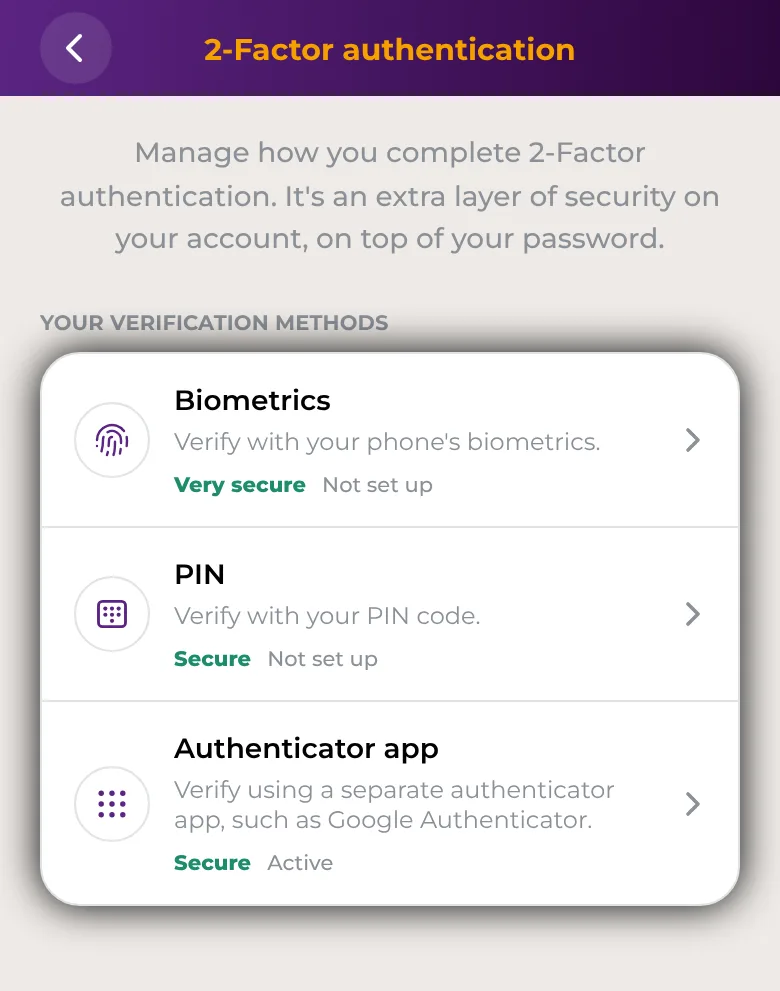
- Open Account → Security → 2-Factor authentication.
- Under Your verification methods, tap Biometrics.
- Read the overview and tap Set up passkey.
- Enter your password and tap Continue.
- Open your authenticator app and enter a new 6-digit code. The code you logged in with won't work again, so wait for the next one if needed.
- On Set up a passkey on this phone?, tap Continue.
- Choose how the Passkey is protected: Use biometrics (the most secure option) or PIN only. If you choose biometrics, confirm with your fingerprint or face when your phone asks.
- On Your PIN code, tap Set a PIN code.
- Choose six digits and enter them again to confirm.
- Keep the app open while it sets up this phone. When you see This phone is set up, tap Done.
You have 10 minutes to finish after you confirm your password and code. If it takes longer, the app asks you to confirm it's you again.
If you only want a PIN, tap PIN instead of Biometrics in step 2. The steps are the same, without the biometrics choice.
After setup, we send you an email and a notification. If you didn't set up a Passkey yourself, use the link in that email to remove the phone, and read Lost or changed your phone.
On the web
A Passkey can't be set up on the web. On the web, Security → Two-Factor Authentication shows a Passkeys section that tells you to set it up in the mobile app.
Your app PIN
- The app PIN has six digits. It's different from your 4-digit Visa card PIN.
- Avoid birthdays and easy patterns. The app refuses sequences like 123456 and repeats like 121212.
- After 5 minutes without use, the app locks. Your PIN, or your fingerprint or face, opens it again.
- If you forget your PIN, you can always log in with your password and authenticator code instead.
Change your PIN
- Open Account → Security → 2-Factor authentication.
- Under Manage, tap Change PIN.
- Enter your current PIN.
- Choose a new six-digit PIN and enter it again to confirm. It must be different from your current one.
If your phone uses biometrics, it may ask you to confirm with your fingerprint or face before the change is saved.
Too many wrong PINs
After 5 wrong PINs in a row, your PIN is locked for a while, including for unlocking the app. The app tells you how long you have to wait. If it happens again, the lock lasts longer. While your PIN is locked, you can log in with your password and authenticator code.
Using biometrics
- To use biometrics, first set up a fingerprint or Face ID in your phone's settings.
- If you chose PIN only, you can add biometrics later: tap Biometrics in 2-Factor authentication, then follow Add fingerprint or face (or Add Face ID, Add Touch ID, Add fingerprint, depending on your phone). You confirm with your current PIN, and you keep the same PIN.
- If the fingerprints or face on your phone change, biometrics stop working for the app. Use your PIN, then set biometrics up again in Security.
- Changes to your security settings still need your fingerprint or face.
Use this phone instead
Your Passkey and PIN work on one phone at a time. If they are set up on another phone or in another installation of the app, the Biometrics and PIN rows say so.
- On the new phone, open Account → Security → 2-Factor authentication.
- Tap the Biometrics or PIN row that says you can use this phone instead.
- Tap Use this phone and enter a new code from your authenticator app.
- Set up your Passkey and PIN on this phone as described above.
The PIN and biometrics on the other phone stop working, and it is logged out. This can't be undone.
Remove this phone
- Open Account → Security → 2-Factor authentication.
- Under Manage, tap Remove this phone.
- Confirm, then enter a new code from your authenticator app.
The phone is removed from your account and logged out, and its PIN and biometrics stop working. To set them up again, you'll need your password and a code from your authenticator app. You can also remove a phone in Devices & sessions, in the app or on the web.
Good to know
- Got a new phone, or lost your old one? See Lost or changed your phone.
- Moving your authenticator codes to a new phone? See How to export Google Authenticator to your new phone.
- If the app says Not available for your account right now and you need help, contact Support.