Sign in with Google or Apple
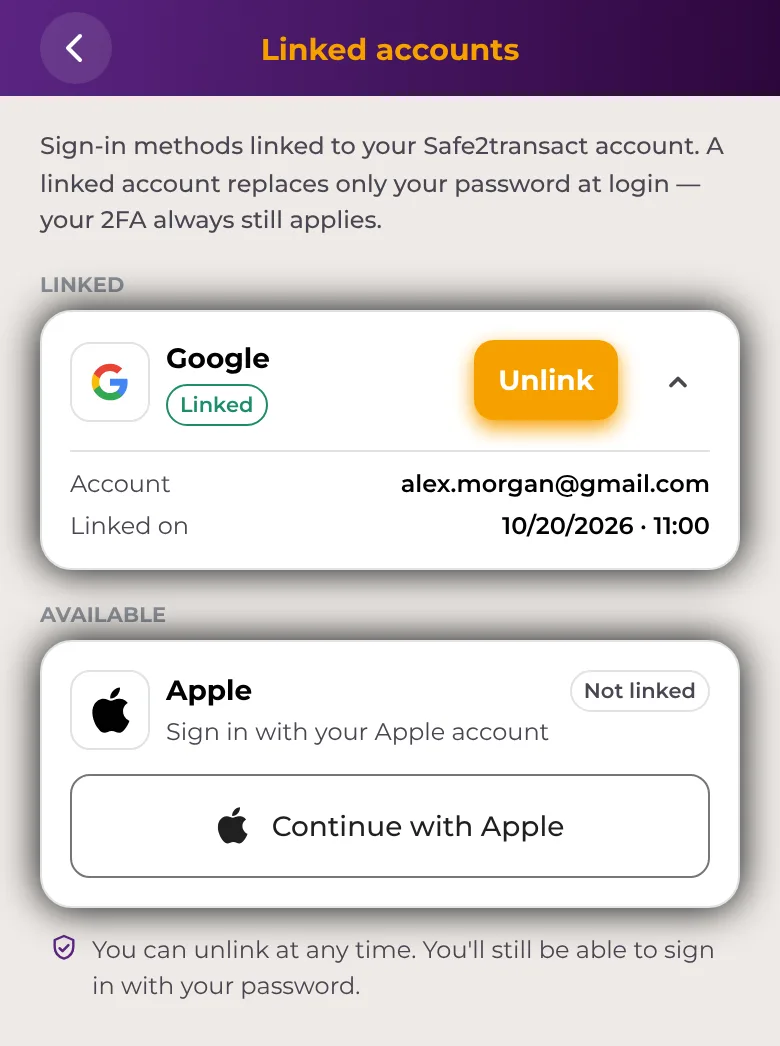
You can link a Google or Apple account to your Safe2transact account and use it to sign in. A linked account replaces only your password at login. Your 2-Factor authentication always still applies.
Before you start
- You need an existing Safe2transact account. You can't open a new account with Google or Apple.
- For Google, the Google account must use the same email address as your Safe2transact account.
- To link Apple, the authenticator app must be set up on your account. See How to enable or reset Two-Factor Authentication (2FA).
- Your password keeps working. You can always sign in with your email and password instead.
Link an account in the app
- Open Account → Security → Linked accounts.
- Under Available, find Google or Apple.
- For Google, tap Continue with Google and choose your Google account.
- For Apple, tap Continue with Apple and confirm with Apple. Then enter a 6-digit code from your authenticator app.
- The account moves to Linked.
You can also link Google from the app's login screen: tap Continue with Google. If an account already exists for that email, the app shows Link your Google account. Enter your Safe2transact password and tap Link account.
Link an account on the web
- Go to Security → Linked accounts.
- Use the Google button next to Google and choose your Google account.
Apple can be linked only in the app.
Sign in with Google or Apple
In the app
- On the login screen, tap Continue with Google or Continue with Apple.
- Confirm with Google or Apple.
- Complete your 2-Factor authentication, as you do after entering your password.
If you haven't linked Apple yet, the app tells you to log in with your email and password first, then link Apple under Linked accounts in Security.
On the web
On the sign-in page, use the Google button, then complete your 2-Factor authentication. Sign in with Apple is available only in the app.
Unlink an account
In the app
- Open Account → Security → Linked accounts.
- Under Linked, tap Unlink next to the account.
- Enter a 6-digit code from your authenticator app.
On the web
- Go to Security → Linked accounts.
- Click Unlink next to the account and confirm with your 2FA code.
After unlinking, you can't sign in with that account any more, but you can still sign in with your password. You can link it again at any time.
Good to know
- We email you each time a sign-in method is linked or unlinked. If it wasn't you, change your password straight away and contact Support.
- A Google or Apple account can be linked to only one Safe2transact account.
- Keep your Google or Apple account secure too, for example with its own 2-step verification.