Lost or changed your phone
If your phone is lost or stolen, remove it from your account as soon as you can. If you simply got a new phone, move your authenticator app first, then set up your Passkey on the new phone.
If your phone is lost or stolen
- Sign in on the web from a computer or another device.
- Go to Security → Devices & sessions.
- Under Devices, find the lost phone and click Remove device. Confirm with your 2FA code.
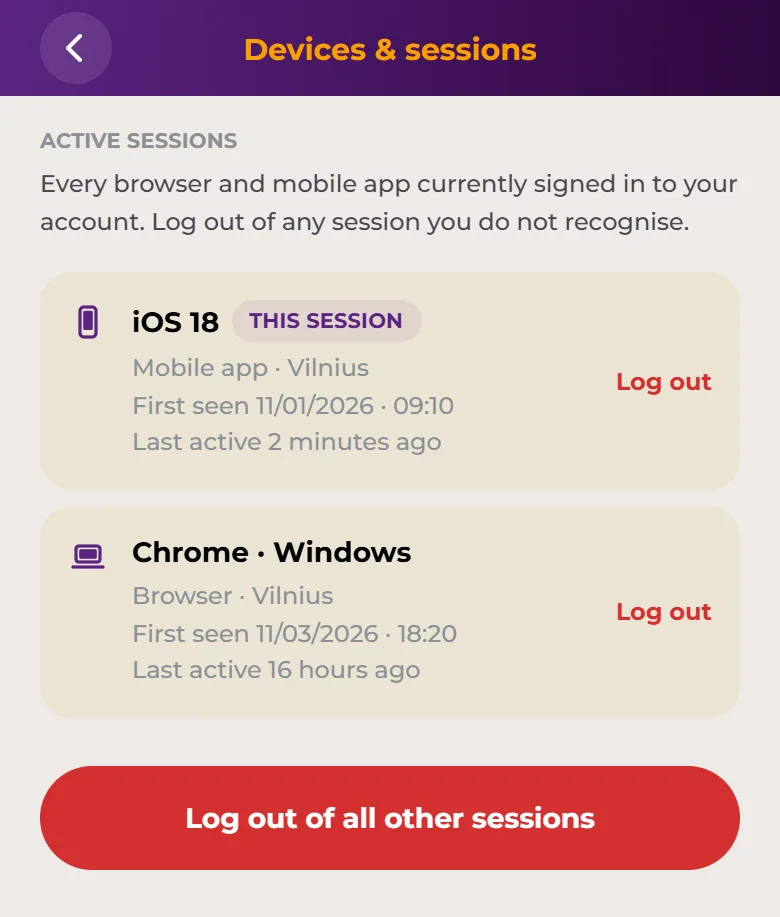
- Under Active sessions, click Log out of all other sessions, or Log out next to any session you don't recognise.
- Change your password: Security → Change password. See Password reset.
- Check your recent transactions. If you see anything you don't recognise, or think someone has got into your account, lock your account.
If you have a Visa card in the lost phone's wallet, or lost your card too, see What to do if your card is lost or stolen.
What happens to the Passkey on a lost phone
- Your Passkey and app PIN stay on that phone only. Someone who finds it still needs your fingerprint, face or app PIN to open the app.
- The app locks after 5 minutes without use.
- When you remove the phone, it's logged out and its Passkey, PIN and biometrics stop working. A removal can't be undone.
If we emailed you about a phone you don't recognise
When a Passkey is set up on a phone, we send you an email. If it wasn't you, open the link in that email and choose End that phone's access. The link works until the time shown in the email. After that, no phone can be used with your account until you contact us. Then change your password.
If the link has expired, remove the phone under Security → Devices & sessions on the web, and change your password.
Set up a new phone
- Move your authenticator app to the new phone. If you use Google Authenticator, see How to export Google Authenticator to your new phone. Do this before you reset or wipe the old phone.
- Install the Safe2transact app on the new phone and log in with your email, password and a code from your authenticator app.
- Open Account → Security → 2-Factor authentication and set up your Passkey and PIN. If they are still set up on your old phone, tap the row that offers to use this phone instead, then tap Use this phone. Your old phone stops working with the app. Full steps: Set up a Passkey, biometrics and app PIN.
If you no longer have your authenticator codes
If the authenticator app was only on the lost phone, you can't log in with a code. Contact Support and ask for a 2FA reset. We may ask you to verify your identity again. After that, set up 2FA again: see How to enable or reset Two-Factor Authentication (2FA).
If your phone number changed
In the app: Devices & sessions
You can do the same checks in the app on another phone where you're logged in: open Account → Security → Devices & sessions. Tap Remove next to a phone under Devices, or use Log out of all other sessions.
Need help?
If you're not sure which steps apply to you, contact Support.