Hello! How can we help?
Notifications and inbox
We keep you informed about your account through notifications in your inbox and by email. You choose which types you get and where, except security alerts, which are always on.
Your inbox
In the app
- Open Account → Inbox.
- New notifications are shown at the top. Use the search field to find a notification.
- Turn on Only show unread to hide the ones you've read.
- Open the more actions menu to Mark all as read or Clear all.
- To delete one notification, swipe it and tap Delete.
On the web
- Log in and open Account → Inbox.
- Use Only show unread to filter, and the actions menu to Mark all as read or Delete all.
Choose your notifications
In the app
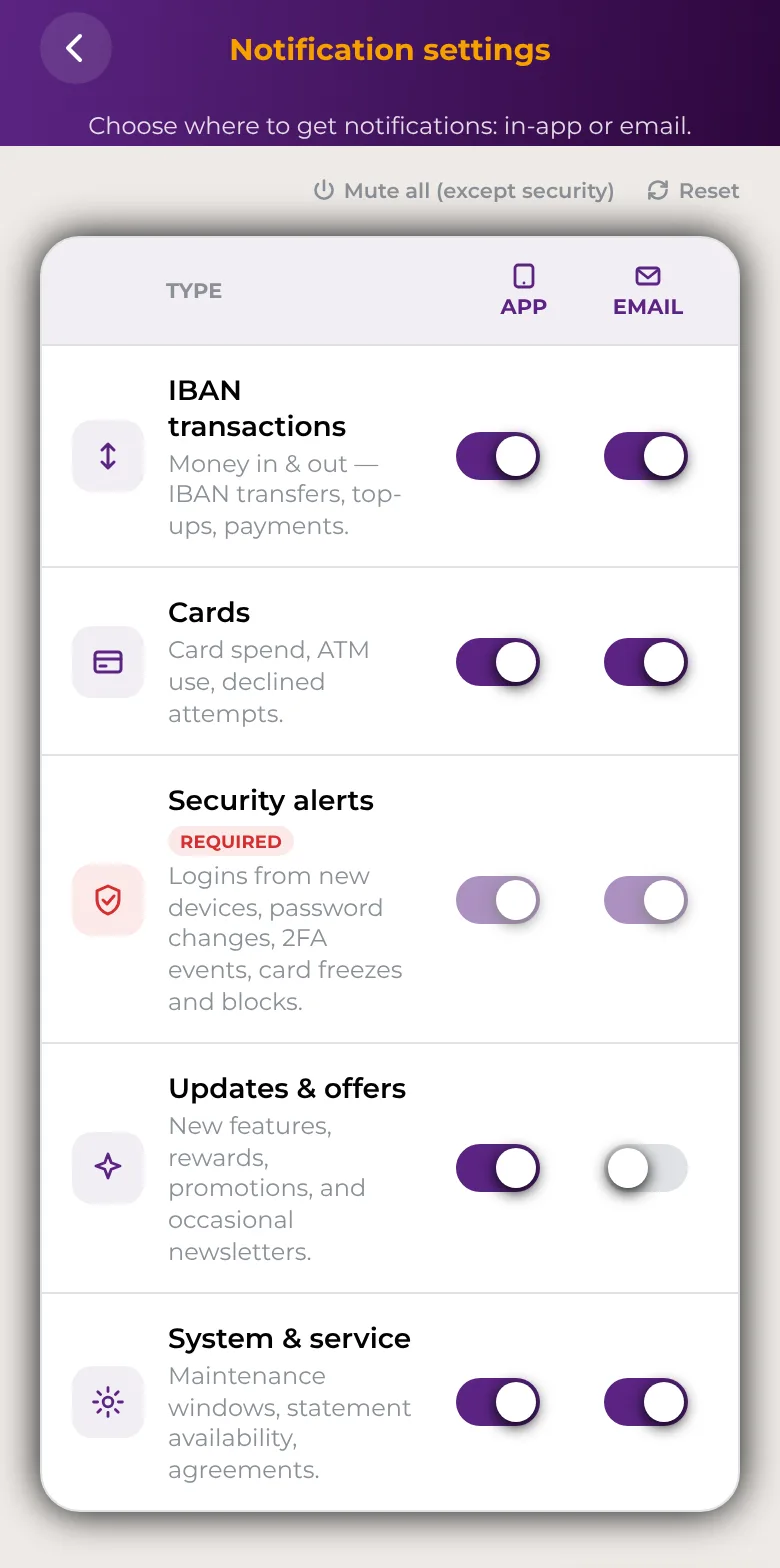
- Open Account → Preferences → Notification settings.
- For each type, switch App or Email on or off. Your change is saved straight away.
- To turn off everything you can, tap Mute all (except security). To turn everything back on, tap Reset.
On the web
- Log in and open Account → Settings → Notification settings.
- Under Your choices, switch each channel on or off for each type.
Notification types
| Type | What it covers |
|---|---|
| IBAN transactions | Money in and out of your IBAN account |
| Cards | Card spending and other card activity |
| Crypto | Your crypto activity |
| Security alerts | Sign-ins, password changes, two-factor authentication and other security events. Always on: marked Required in the app and Always on on the web. |
| Updates & offers | New features, rewards and promotions |
| System & service | Service information, such as maintenance and agreements |
You see only the types that match the products you use.
Good to know
- Some messages, such as replies to your support requests and emails about your account closure, are sent by email whatever your settings.
- If you want alerts on your phone's lock screen, allow notifications for the Safe2transact app in your phone's settings.
- Not getting our emails? Check your spam folder. See Did not receive the confirmation SMS or email?
- Got a message that doesn't look like it came from us? See How to report suspicious activity.